Picture Picker
The picture picker lets you choose a picture when there are too many for a menu. It shows the pictures either as a list with a name beside each picture, or as a grid of pictures with no names. The picture that is in use now is marked, and a click on another picture chooses it and closes the picker.
The picker is titled for what it chooses, such as "Choose a picture" for a macro, or "Picture for" and the place's name for a map marker.
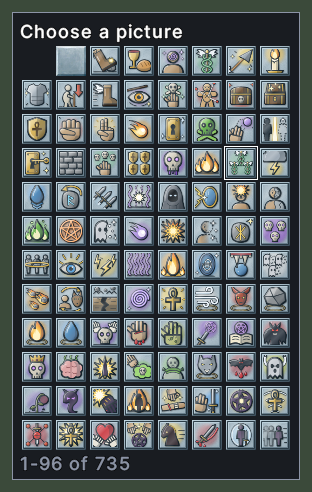
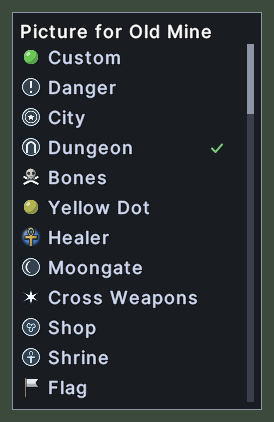
Opening it
- Click the picture at the top of the Macros window to choose a picture for the chosen macro.
- Shift+right-click one of your own places in the waypoint list, or Shift+right-click one of your own markers on the map, and choose Waypoint Icon: from the menu.
- Opening another picker while one is open replaces it.
- A click on a picture closes it. A right-click closes it without a choice.
Using it
- Click a picture to choose it. The picker closes, and the macro or the marker takes the picture.
- Roll the mouse wheel over the grid to scroll it. The line under the grid follows. With the Wheel resizes panels setting on, the wheel makes the picker larger or smaller instead.
- Roll the mouse wheel over the list to scroll it.
- Hover over a picture in the list to read its name.
- Drag the picker to move it. With the Lock the layout setting on, it cannot be dragged.
- Right-click to close the picker.