Macros
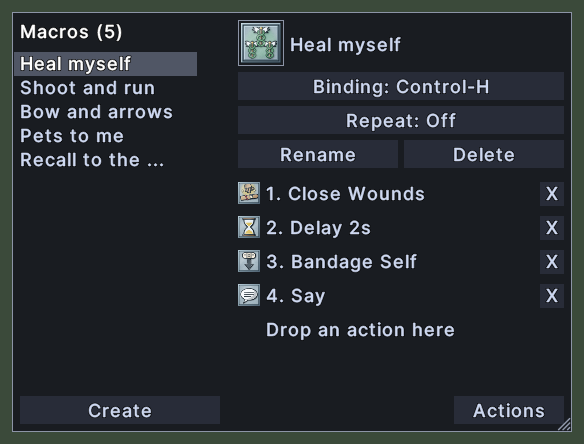
The Macros window is where you make and edit your macros. The column on the left lists your macros, and its title says how many you have. The pane on the right shows the macro you chose: its picture and name, its key, whether it repeats, and the actions it runs, in order.
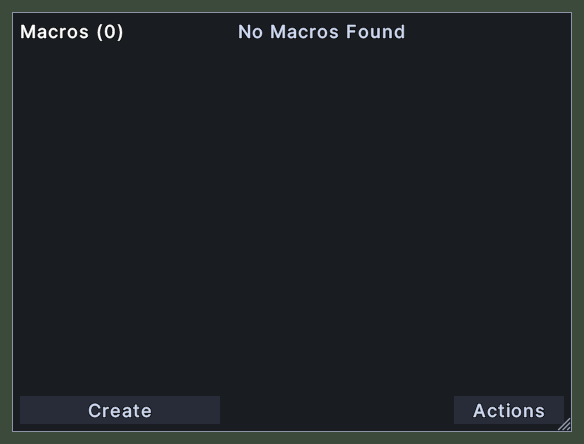
The last line of the steps always reads "Drop an action here". That empty place is where the next action goes. When you have no macros, the pane says "No Macros Found" and only the Create button can make the first one.
Opening it
- The Macros action, in the Menu Actions group of the Actions window, opens it and closes it again. You can put that action on a hotbar.
- Macros in the main menu opens the window or closes it.
- Macros in the paperdoll's menu opens the window or closes it.
- A right-click closes the window.
Using it
- Click a macro in the left column to choose it.
- Drag a macro from the column onto a hotbar slot to put it there. Hover over a macro to see its name and its key.
- Click Create to make a new macro. It is named Macro with its number, and it is chosen at once.
- Click the macro's picture to choose another picture for it.
- Click the key button to give the macro a key, then press the key. When the macro already has a key, the button shows it, and a click clears it.
- Click the repeat button to turn repeating on or off. The button says which it is now.
- Click Rename to type a new name for the macro.
- Click Delete to remove the macro. A window asks first.
- Drag an action from the Actions window, a spell, a skill or an item onto the empty place at the end of the steps to add a step.
- Drag an action onto a step to replace it. Drag one step onto another to move it.
- When you drop a Delay step, a box asks for the seconds to wait.
- Click the X at the right of a step to remove it.
- Shift+right-click a step for its menu. It sets what the step aims at, and it has Delete. A step that says something also has Edit Item, to change the words.
- Click the Actions button at the bottom right to open the Actions window, so that you can drag from it.
- Roll the mouse wheel over the steps or the column to scroll them.
- Drag the corner grip to resize the window. The window opens at the size you leave it.
- Right-click to close the window.
Changes
v1.0.0-alpha.1
- Macros are edited beside their list.