Find a Place
The place finder looks up a place by name and moves the map to it. You type in the box at the top, and the list below shows every match. Each row gives the name of a place and the world it lies in. The title counts the matches, with a plus sign when the search stopped before the end of the list.
Your own waypoints that match come first, and an asterisk stands before their names. Only the waypoints in the world that the map shows are searched. The named places of the world follow them. When you type a sextant reading or a pair of map numbers, a row for that point heads the list.
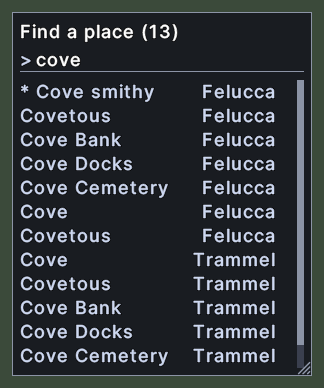
Opening it
- The Find a place item in the map's menu opens the finder. The map's menu opens from the three dots on the map.
- The Find a place action, in the Menu Actions group of the Actions window, opens and closes it. You can put the action on a hotbar.
- Press Escape in the box to put the window away. A right-click on the window also closes it.
- The next time it opens, the box is empty.
Using it
- Type part of a name. The list narrows as you type.
- Click a row to move the map to that place. The map stops following you and shows the world of the place.
- Press Enter to move the map to the first row of the list.
- Hover over a row to read the place's name, its world and its numbers. The hover also says when the place is one of your own marks.
- Roll the mouse wheel over the list to scroll it.
- Drag the corner grip to make the window larger or smaller.
- Drag the box at the top to move the window.
- Right-click to close the window.
Changes
v1.0.0-alpha.1
- The map lists only your own waypoints, and has a find box and a legend.