User Settings
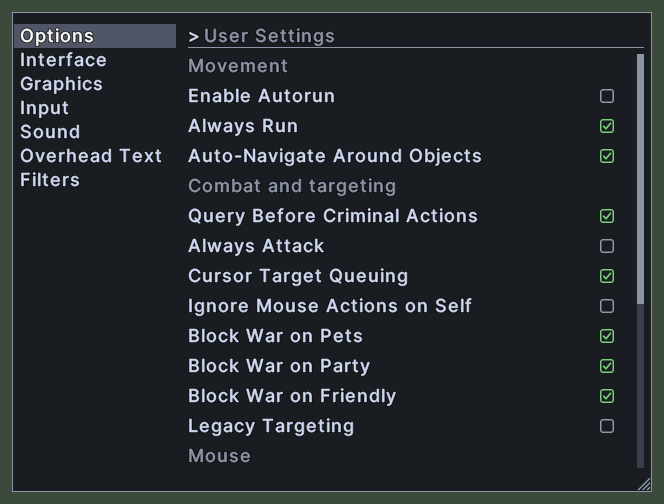
The settings window is where you change how the game and this UI behave. A column of pages stands at the left, and the options of the chosen page stand at the right. Each option is a row with its name and its control: a box to tick, a list to open, a slider, or a button.
Options of the same kind are grouped under a heading. The options you see are the ones this client offers.
Opening it
- The Settings action, in the Menu Actions group of the Actions window, opens or closes the window. You can put the action on a hotbar.
- On your own paperdoll, click the three dots at the top right and choose Settings.
- The User Settings entry of the main menu opens the window.
- The Filters entry, under Ignore Player in the chat window's menu, opens the window on the Filters page.
- The window opens on the page you left it on. A right-click anywhere on it closes it.
Using it
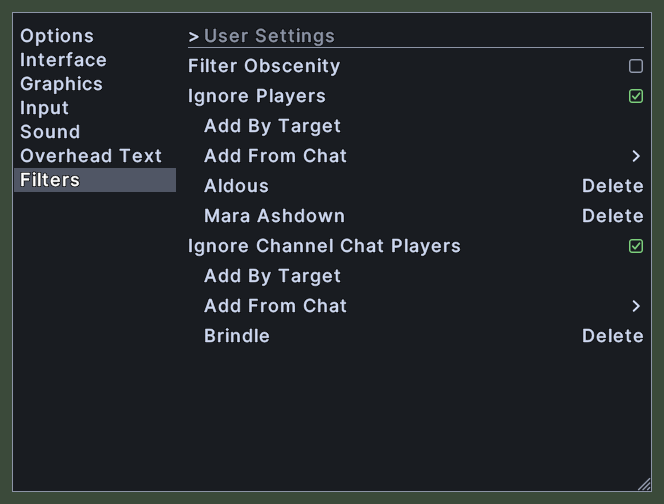
- Click a page's name in the column at the left to show that page. Its pages are Options, Interface, Graphics, Input, Sound, Overhead Text and Filters.
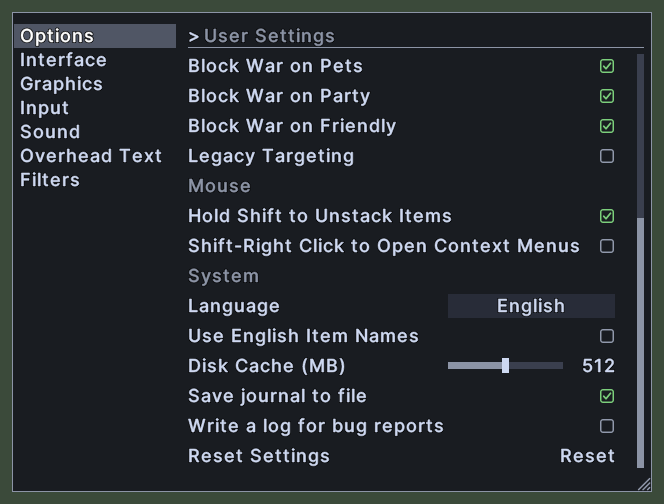
- Options: movement, combat and targeting, mouse and system options, ending with Reset Settings. Write a log for bug reports, under System, makes the game write logs/lua.log for a bug report while it is on.
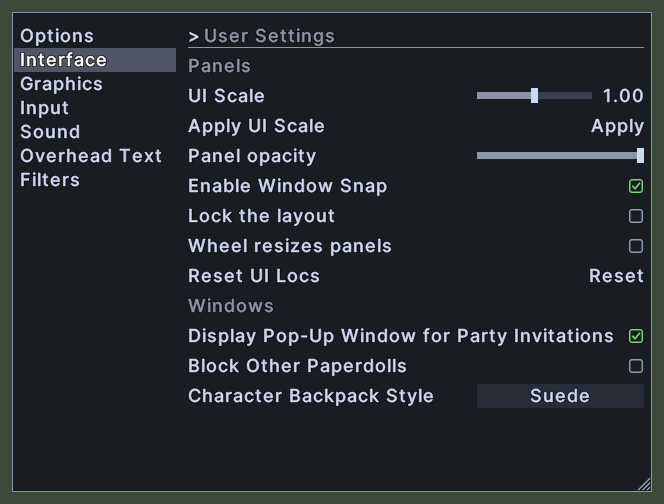
- Interface: the UI scale and its Apply button, the panel opacity, window snapping, locking the layout, whether the wheel resizes panels and Reset UI Locs, then options for the party invitation pop-up, other characters' paperdolls, legacy paperdolls and the backpack style.
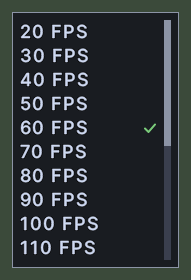
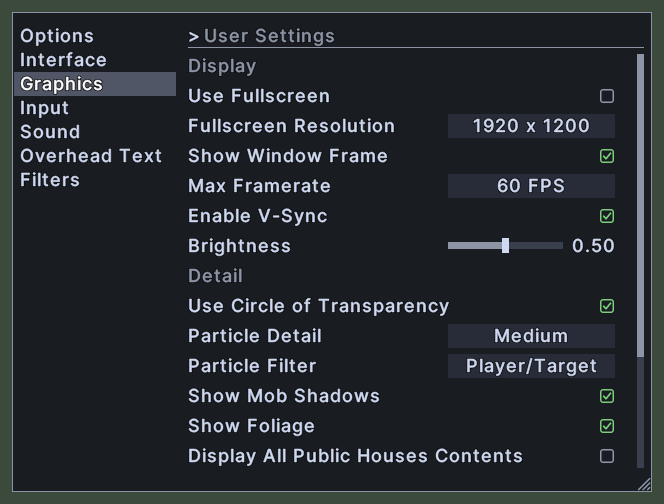
- Graphics: full screen, resolution, frame rate, v-sync and brightness, then detail and animation options.
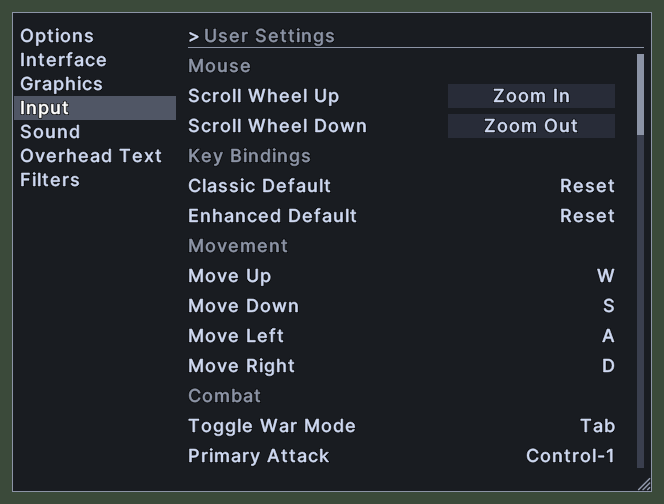
- Input: what the scroll wheel does, the two buttons for the default keys, and a key for every command.
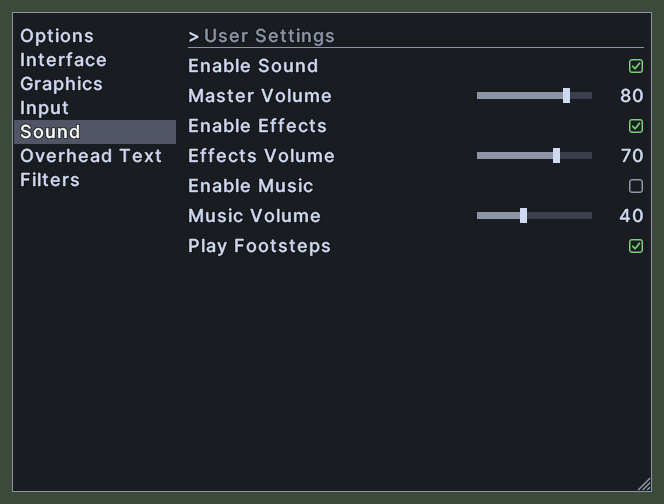
- Sound: the master, effects and music volumes, each with a switch, and the footsteps.
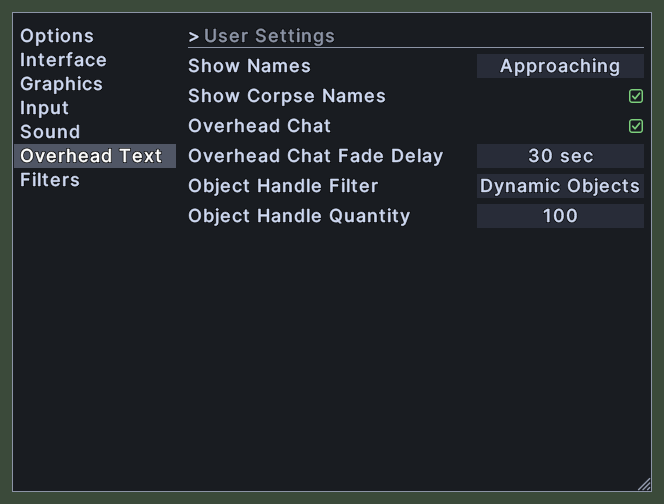
- Overhead Text: the names and speech drawn over heads and corpses, and the object handles.
- Filters: the obscenity filter, and the ignore lists for players and for channel chat players.
- Type in the box at the top to find options in every page at once. Each match names its page. Press Escape to empty the box, or click a page to leave the search.
- Click a box to tick or clear it.
- Click a list and pick an entry from the list that opens under it.
- Drag a slider to change its value. Most sliders show the value beside them.
- Click a button, such as Reset or Apply, to run it. Reset Settings, Reset UI Locs and the two buttons for default keys ask first.
- On the Input page, click a command, then press the key you want for it. If the key already runs another command, the window asks before it takes the key away from that command.
- On the Filters page, click Delete beside a person to stop ignoring them.
- Hover over an option to read what it does.
- Roll the mouse wheel over the rows to scroll them.
- Drag the corner grip to resize the window.
- Right-click to close the window.
Changes
v1.0.0-alpha.1
- Your hotbars, key bindings and settings carry over between this UI and the default UI, both ways.
- Settings come in pages, with a scale for the whole UI.
- For a bug report, turn on Write a log for bug reports in Settings, under System on the Options page. The game then writes logs/lua.log, with every error, until you turn it off.