Shop
The shop window is where you buy from a vendor or sell to one. The list on the left shows what the vendor sells, or what the vendor will buy from you, with the count and the price of each item. The list on the right is your order, and the total under it says what the order costs or what it will bring.
The heading names the vendor and says how many items the left list holds. When you are buying, the total also says how much gold you carry, and it turns red when the order costs more than that.
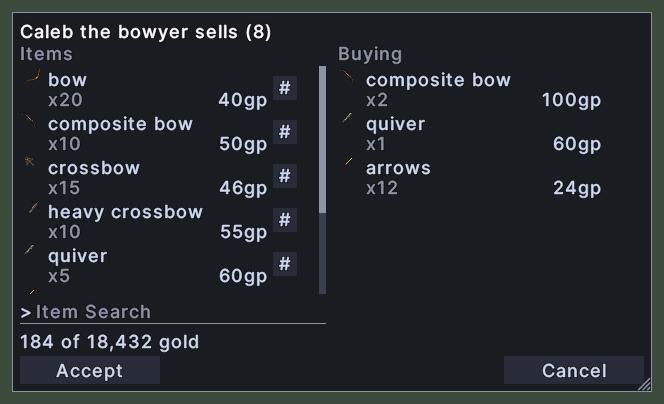
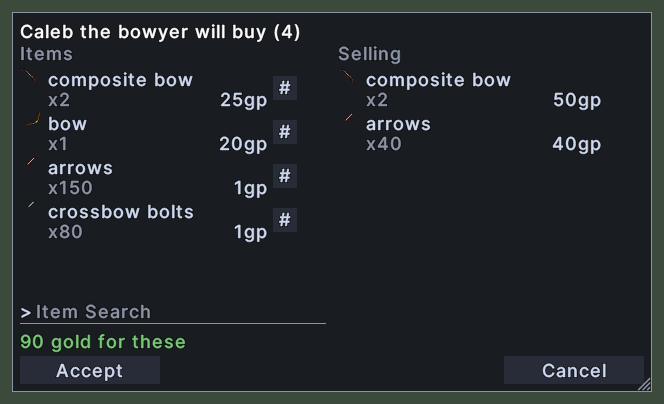
Opening it
- The window opens when a vendor offers to sell to you or to buy from you.
- Accept sends your order to the vendor and closes the window.
- Cancel closes the window without buying or selling anything.
- A right-click anywhere on the window closes it, the same as Cancel.
Using it
- Click an item in the left list to add one to your order.
- Click the # button on an item's row to type how many you want. The order never holds more than the vendor has.
- Click an item in your order to take one off.
- Shift+right-click an item in either list to take one off your order.
- Type in the Item Search box under the left list to show only the items whose names match. Press Escape to empty the box.
- Hover over an item whose name is cut off to read it whole.
- Roll the mouse wheel over a list to scroll it. With the Wheel resizes panels setting on, the lists do not scroll.
- Drag the corner grip to resize the window. Every vendor's window opens at the size you leave it.
- Shift+right-click the heading to fill your order from one of the profiles in the Agents window. The same menu has Clear, which empties the order.
- Right-click to close the window.
Changes
v1.0.0-alpha.1
- The shop window has a find box, and a right-click or Cancel closes it.