Target
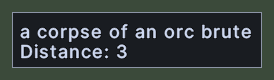
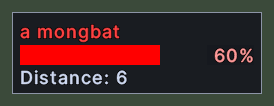
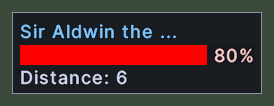
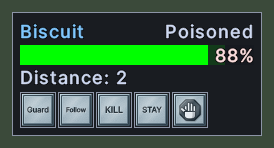
The target window shows what you have targeted. For a creature or a person it draws the same health bar as a parked health bar, with the name in the colour of notoriety, the bar of health, the percent and the distance in tiles. For an item or a corpse it shows the name and the distance, and no bar.
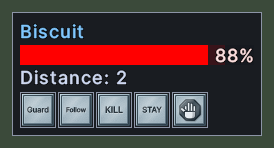
When you target a pet of your own, a row of command buttons stands under the distance. The server's quick actions for other characters, such as banking or taming, appear there too when the server offers them.
Opening it
- The window opens by itself when you target a creature, a person, an item or a corpse.
- It closes by itself when you have no target.
- A right-click does not close it, so that a missed click in a fight cannot hide your target's health.
Using it
- Click the bar to target the creature again.
- Control+click the bar to choose the spell that a quick cast puts on the creature. Shift+click it to cast that spell on the creature.
- Double-click the bar to open the creature's paperdoll.
- Drop an item on the bar to give it to the creature.
- Shift+right-click the bar to open the server's menu for the creature.
- Click a command button to do that action on the target. A button fades while the action is out of reach: banking beyond a short distance, taming beyond a shorter one, or any action the server greys out.
- Hover over a command button to read its name.
- Hover over the window while an item or a corpse is targeted to see its properties.
- Hover over a name that is cut off to read it whole.
- Drag the window to move it. With the Lock the layout setting on, it stays where it is.
Changes
v1.0.0-alpha.1
- The target window shows the target's health and distance, with command buttons for your pets.